Zoom - How to join a Zoom meeting using a Deakin video conference room
There are many ways to join a Zoom conference
Jump to Section
- Meeting Invitation - Obtain the SIP address and Password of the meeting
- Rooms with Cisco Touch 10 Controller
- Rooms with Cisco Touch 8 Controller
- Rooms with AMX Control
- Rooms with ACA Control
- Other methods: PC, Mac, Linux, iOS, Android or Zoom Web Client
- More Zoom Information
- Zoom Room Connector
Meeting Invitation - Obtain the SIP address and the Password of the meeting
Introduction
Zoom is a video conference service. There are different types of Zoom clients, and different types of Zoom meetings.
You will need the SIP address (SIP URI) of the Zoom meeting to join using a video conference room.
Note: Not all Zoom meetings have a SIP address. Only Zoom meetings which have the 'Zoom Room Connector' feature enabled will have the SIP address in the meeting invitation..
There is more information about the Zoom Room Connector at the end of this knowledge article.
Meeting Invitation
The meeting organizer should send you an invitation to the meeting which includes dialing information for how to join the Zoom conference.
Here is an example Zoom Meeting invitation which includes the SIP address. (The host has purchased the 'Zoom Room Connector')
Take note of the SIP URI, and if there is a Password. (Not all Zoom meetings have a Password)
Tip: If the Zoom address you are dialling has a '@zoom.aarnet.edu.au' domain, you may dial the shortcut domain of '@zaa'.
For example, if the SIP URI is 5227982666@zoom.aarnet.edu.au, you can dial 5227982666@zaato connect to the same conference.
Note: This shortcut domain only works if you are using a Deakin video conference room.
Here is an another example Zoom Meeting where the meeting host has not purchased the 'Zoom Room Connector' feature, so the SIP and H.323 addresses are missing from the meeting invitation
The organizer of this meeting will need to arrange purchase of the 'Zoom Room Connector' feature if they want SIP or H.323 video conference rooms to join the conference, and then send you a new invitation with the SIP URI.
They may refer to the Zoom website, or contact their Zoom sales representative for more information on the 'Zoom Room Connector'.
How to call a Zoom meeting using a Deakin video conference room
Rooms with Cisco Touch 10 Controller
This is a Touch 10 controller.
1. Select Call
2. Touch the 'Search or dial' box to display the numeric Keypad
3. Then select the 'ABC' button to show the keyboard
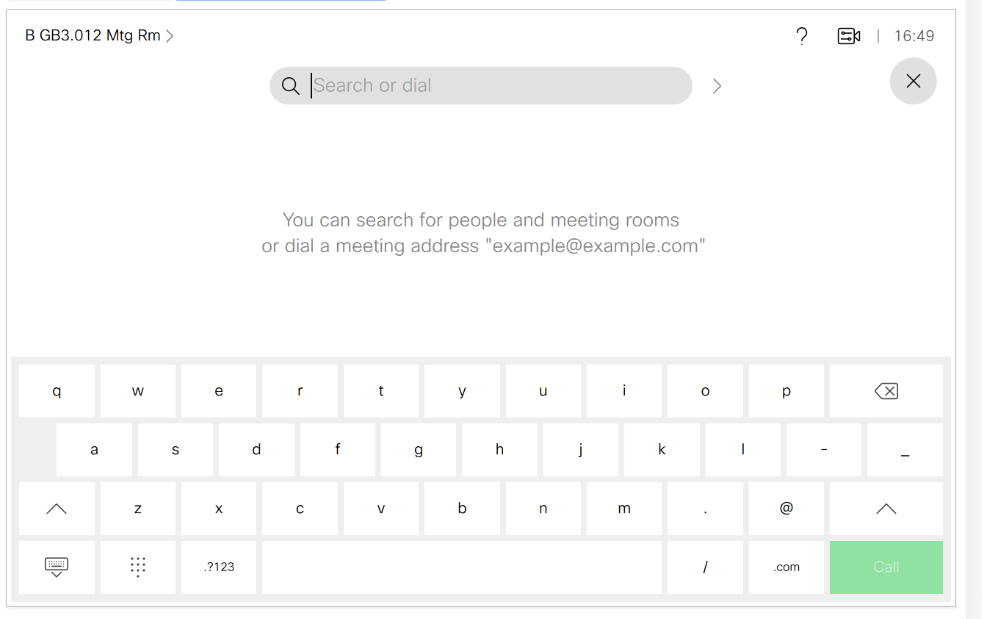
4. Type in the SIP address from the meeting invitation, and then select the green 'Call' button.
5. You are now connected to the Zoom service
6. If your Display is requesting a Password, check your meeting invitation for the Password.
(Skip this step if there is no Password)
On the Touch 10 select the Keypad button
This will display the Number Pad
Refer to your meeting invitation for the unique Password.
Enter the Password for the meeting, followed by the '#' key
In our example meeting, the Password was 243512
So on the Keypad, you would enter 243512#
Meeting has not started yet? Host not joined?
If the Display shows a "Meeting has not started yet" message:
- Check your meeting invitation that you have joined the conference at the arranged time.
- If it is the correct time, please wait for the meeting host to join the conference.
Tip: If you are the meeting host, you will find the Host key on your Zoom profile page.
If you are a guest, please wait for your meeting host to start the meeting.
Rooms with Touch 8 Controllers
This is a Touch 8 Controller
For Deakin Rooms with Touch 8 Controller, the process is very similar to Touch 10, but the buttons may look slightly different to the Touch 10 controller.
1. Select Dial, and enter the SIP URI address. (Use the Keyboard icon to access the keyboard). Select the green 'Call' button to dial.
2. You are now connected to the Zoom conference service. If you are prompted for a meeting Password, or if you need to enter a Host Key, select the 'Keypad' button to display the numeric keypad, enter the Password or Host Key, followed by the '#' key.
Rooms with AMX Controllers
Many large Lecture Theaters and Meeting rooms use AMX Controllers
Select the green Call icon
Touch the 'Search or Dial' box to display the Keyboard
Type in the SIP URI address for the meeting, then select the green Dial button
You should now be connected to the Zoom meeting service.
The lower left hand corner will show the site you are connected to.
Select 'Far End' on the Left Display
Select 'Far End Presentation' or 'Self View' or the Right Display, depending on what you would like to Display.
You may also select other sources to send as Presentation on the Right Display.
Check that your microphone is unmuted when you are speaking.
Check that your local Speaker is unmuted (speaker icon under the volume slider).
More AMX Help Guides here.
Password
If the meeting has a password, you will see a prompt on the Display requesting a Password
Select the green Call button again
Select the Keypad button
Use the Keypad to enter the Password followed by the '#' for the meeting.
Note: If you are the meeting host, you may also use this Keypad to enter the Host Key.
To disconnect from the call, select the red Hangup button
There is a confirmation pop up. Select Yes, Hangup
Rooms with ACA Control
Some large Lecture Theaters and Meeting rooms use ACA Controllers
Press the 'Make a Call' Button
A Keyboard should appear.
Type in the SIP URI address from the meeting invitation.
The address should appear in the grey text box as you type.
A pop up Call button will appear under the grey text box. Press the Call button to dial the address.
You should now be connected to the Zoom conference service.
Some meetings are Password protected.
If the meeting requires you to enter a Password, select the 'Keypad' button
Selecting "Keypad' will display the numeric Keypad. Use this to enter the Password followed by the "#" key.
You should now be in the Zoom meeting.
Note: if you are the meeting host, you may also use this Keypad to enter your host key.
If you are a guest, you may need to wait for the host to join or start the conference.
The microphone Mute/Unmute toggle button is in the top right hand corner.
There is a Volume slider to increase or decrease the audio volume.
To Send a Presentation
Press in the Presentation box.
A pop-up should appear, select the Presentation source from the menu.
Select "Share in-call"
To stop sharing your Presentation, select "Stop sharing"
To disconnect the call, select "End Call"
Other ways to Join a Zoom Meeting?
For information on how to join a Zoom conference using PC, Mac, Linux, iOS, Android or Zoom Web Client
Zoom - How do I join a Zoom meeting using a PC, Mac, Linux, iOS, Android or Zoom Web Client?
Or refer to the Room Help Center
https://support.zoom.us/hc/en-us
More Zoom information
Zoom support documentation
Zoom Room Connector
https://support.zoom.us/hc/en-us/articles/201363273-Getting-Started-With-H-323-SIP-Room-Connector
Zoom Help Center
https://support.zoom.us/hc/en-us
AARNet zoom knowledge
https://support.aarnet.edu.au/hc/en-us/categories/200319418-Zoom
'Zoom Room Connector'
Deakin video conference units can call external video conference systems using SIP or H.323.
SIP and H.323 are the standardised video conference protocols used by most dedicated video conference room systems.
The 'Zoom Room Connector' is a feature pack that the Zoom conference host needs to purchase in order to allow standard SIP or H.323 calls into the Zoom meeting.
External references: https://zoom.us/roomconnector and https://support.zoom.us/hc/en-us/articles/201363273-Getting-Started-With-H-323-SIP-Room-Connector